






Browse thousands
of sports events
or host your own
of sports events
or host your own
Data Management
Athlete Tracking
Online Event Registration
Meet Management Software
Athlete Tracking
Online Event Registration
Meet Management Software
| Track &Field |
Cross Country |
Swimming &Diving |
| K-12 | College | Club | Pro |

A lot of work goes into athletic events.
We make things easy.
We make things easy.
Whether you are a meet director, timer, conference administrator or an athlete, DirectAthletics makes your experience better. Thousands of meets and millions of athletes have benefited from our websites and software.
Who Uses DirectAthletics?
|
Conferences/Leagues
Data Management/Athlete Tracking
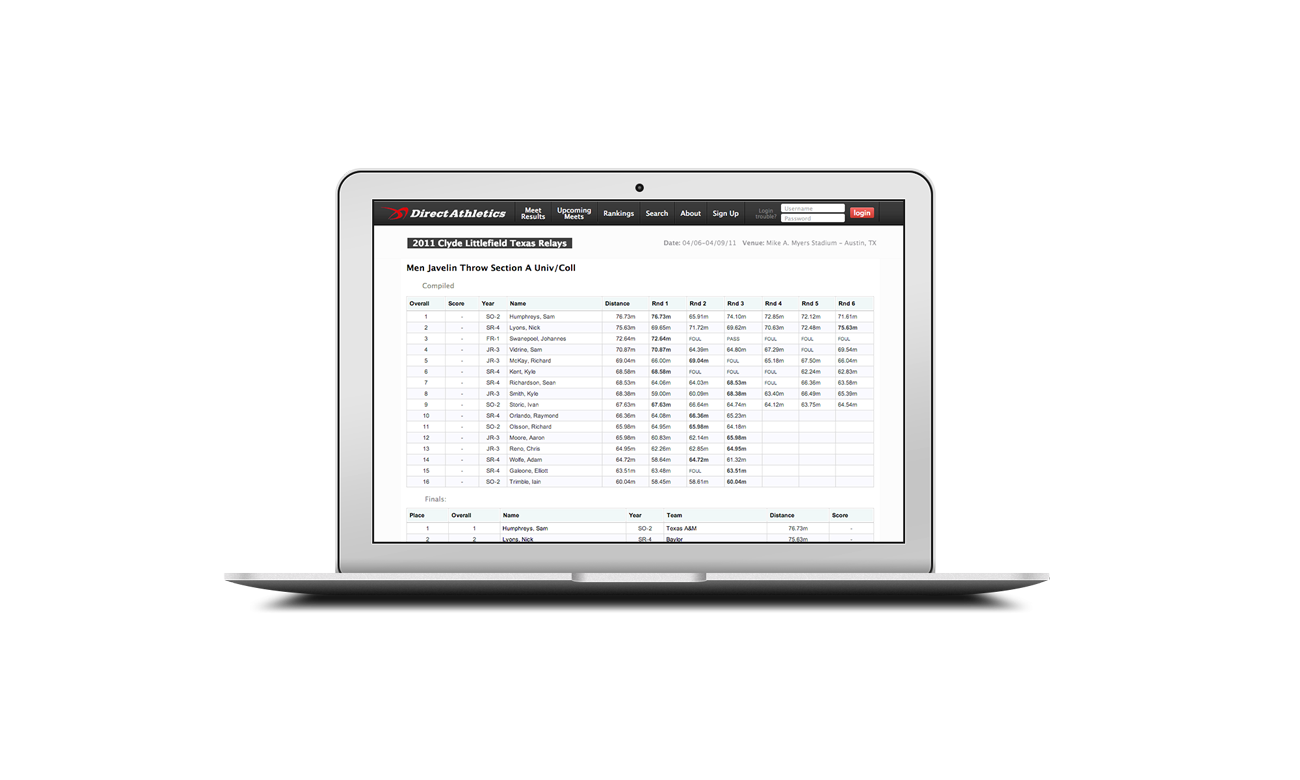
We collect millions of results from meet hosts each year. Automated athlete tracking makes league standings a cinch. Our rankings system is used by nearly every college athletic conference.
|
Athletes
Online Race Registration
We provide software services for fast, secure online athlete entries for thousands of races and meets. Register here for premier events like the Texas Relays and the Mt. SAC Relays.
|
|
Meet/Race Directors
Event management tools
Our online registration system is used by over 4K events each year. It integrates seamlessly with popular meet management applications and our performance database.
|
Timers/Meet Hosts
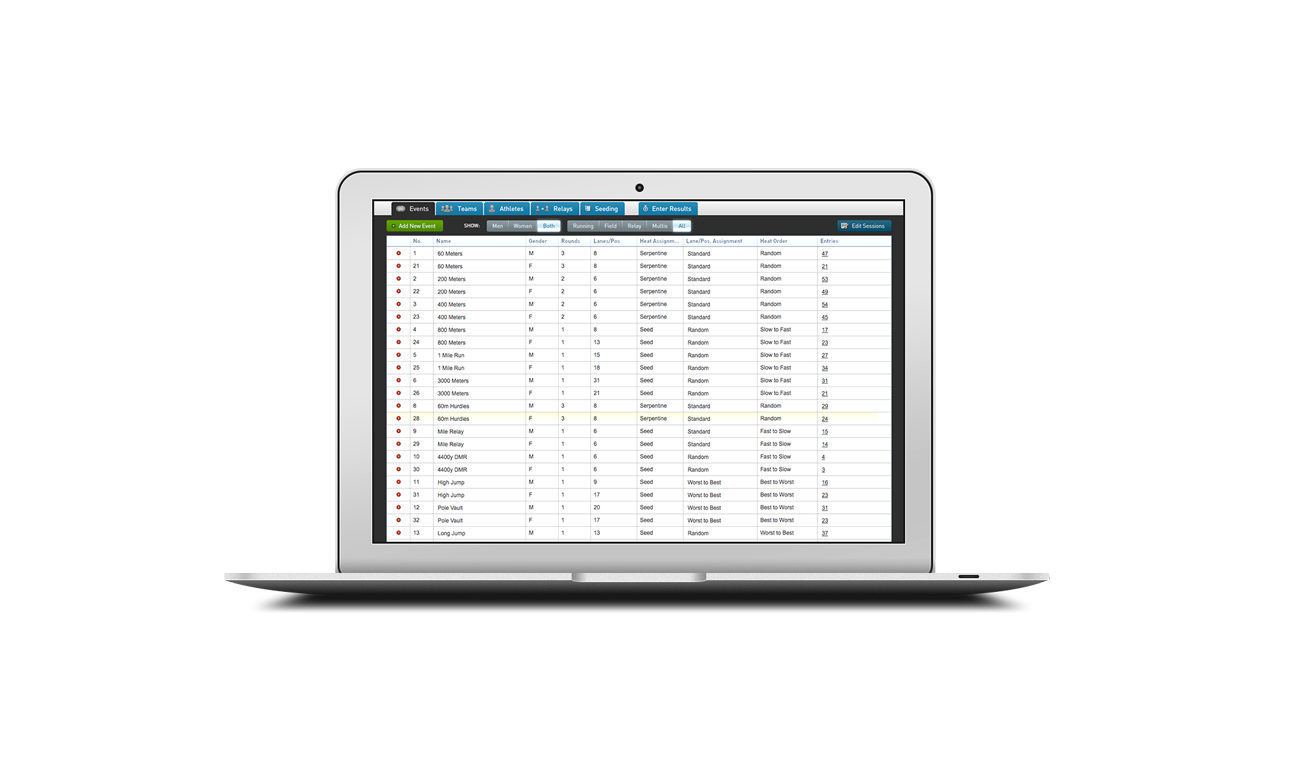
MeetPro: Meet Management Software
MeetPro is our on-site scoring software for Cross Country and Track and Field. Its cutting-edge features include customizable web feeds and live results. It integrates in real-time with DirectAthletics and TFRRS.
|
Featured Services and Products
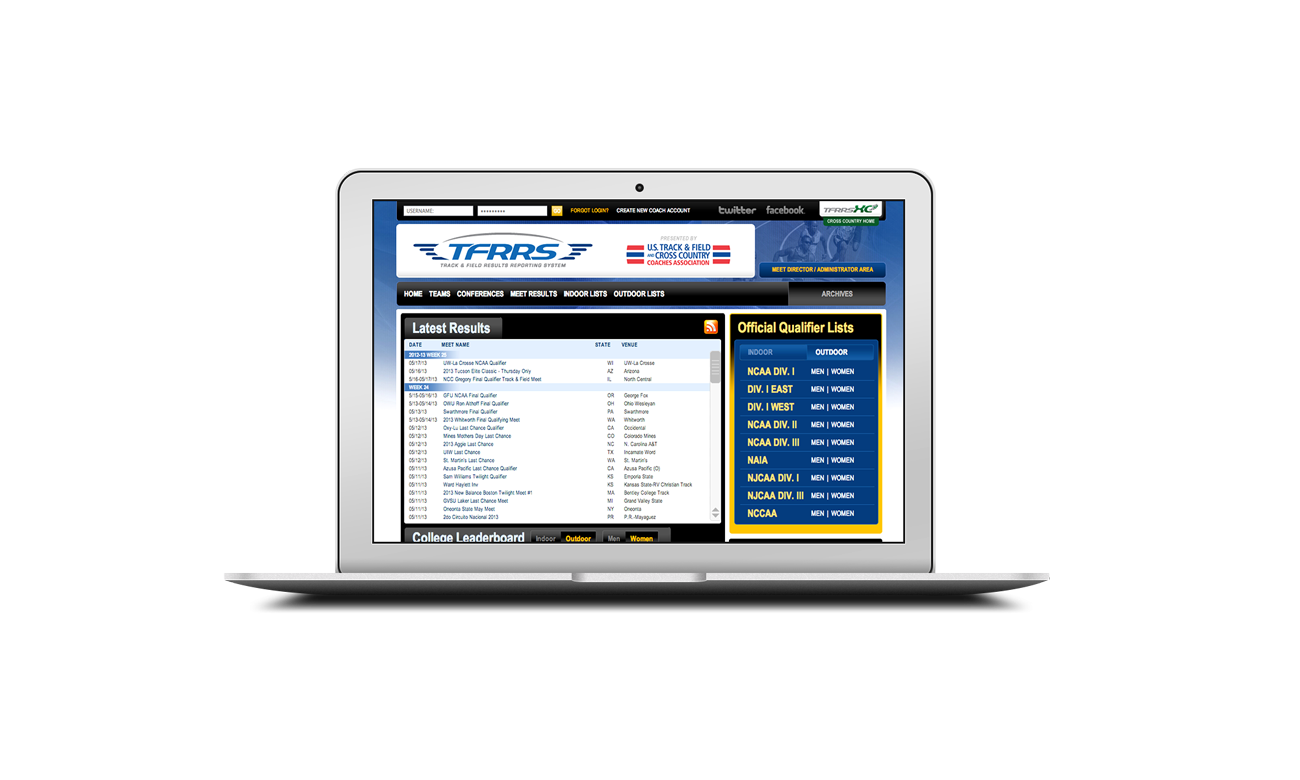
TFRRS- Track and Field Results Reporting System
Featured Clients